1. Installation Manual
The platform is a .NET 9 CQRS/MediatR microservice system with an Ocelot API Gateway, PostgreSQL databases, Kafka event messaging, and a Vite React web application. This guide covers:
- Windows Server deployment with IIS.
- IIS reverse proxy and application pool configuration.
- Kafka and Zookeeper configuration.
- .NET service configuration.
- Required software packages.
- Linux deployment with Docker, Nginx load balancer, and Portainer.
- Docker image build, push, and stack deployment.
- Beginner-friendly verification checkpoints.
1.0 Visual Deployment Overview
Use this diagram as the first visual in the installation manual. It shows how users enter the system and how the .NET 9 CQRS/MediatR services, Ocelot API Gateway, PostgreSQL, Kafka, and web frontend fit together.
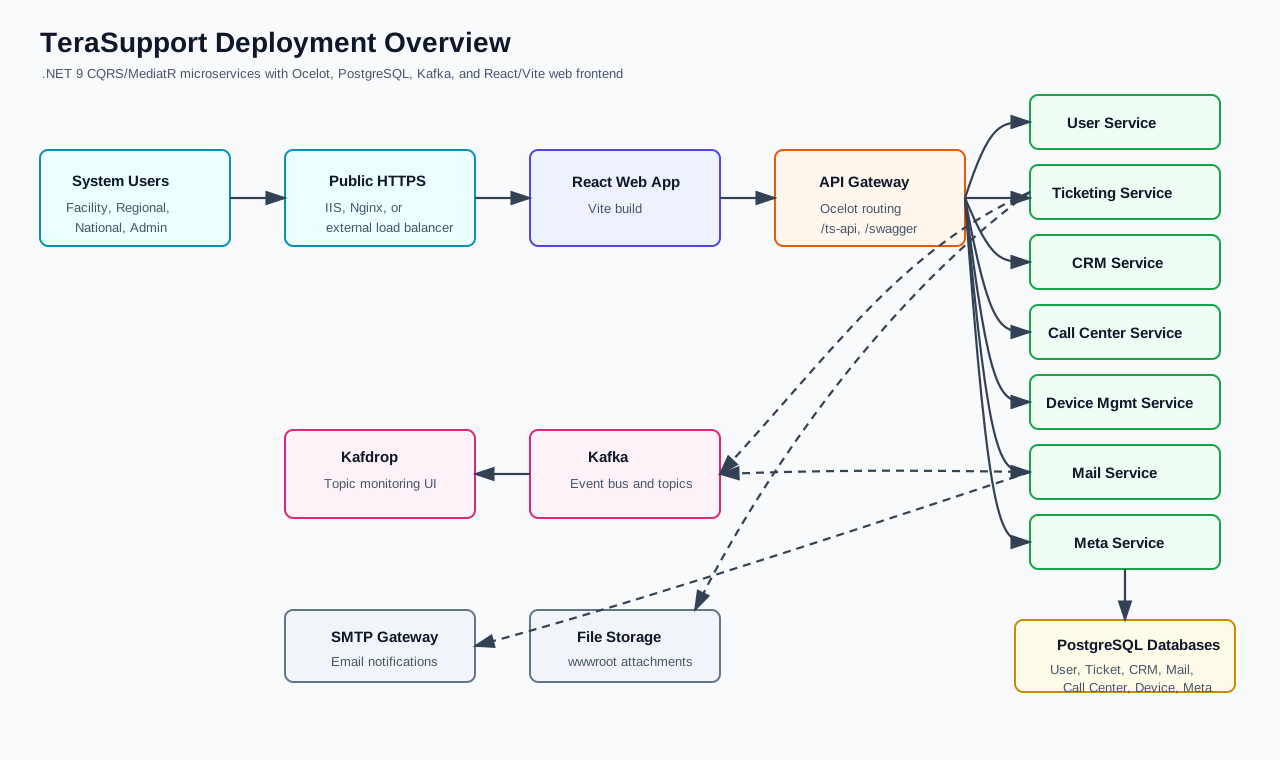
Editable source: Visual Deployment Overview.drawio
1.0.1 Deployment Learning Path
Follow this order when deploying TeraSupport. The Windows path is for IIS hosting. The Linux path is for Docker and Portainer hosting.
| Step | Windows / IIS Path | Linux / Docker / Portainer Path |
|---|---|---|
| 1 | Prepare Windows Server, enable IIS, and install IIS management tools. | Prepare Ubuntu Server and install Docker Engine. |
| 2 | Install URL Rewrite, Application Request Routing, .NET Hosting Bundle, Node.js, Yarn, PostgreSQL, and Kafka if Kafka is hosted on Windows. | Install Portainer CE and create the shared Docker network. |
| 3 | Publish .NET services and build the React/Vite web app. | Build Docker images and push them to the selected registry if needed. |
| 4 | Create IIS app pools, sites, bindings, environment variables, and rewrite rules. | Deploy PostgreSQL, Kafka, and application stacks through Portainer. |
| 5 | Verify IIS, API Gateway, Swagger, login, ticket creation, mail/Kafka, file upload, and reports. | Verify containers, Nginx routes, public URL, Swagger, ticket workflow, mail/Kafka, and reports. |
1.0.2 Windows Visual Walkthrough
Use these cards as the beginner deployment checklist for Windows Server and IIS.
Open Server Manager from the Windows Start menu. Select Manage, then Add Roles and Features. Choose Role-based or feature-based installation, select the local server, and enable Web Server (IIS).
- Enable: Web Server, Management Tools, and IIS Management Console.
- Under Web Server, include Common HTTP Features, Health and Diagnostics, Security, and Application Development.
- Verify: open Internet Information Services (IIS) Manager from Start.
Download and install IIS URL Rewrite, then install Application Request Routing 3.0. Open IIS Manager, select the server node, open Application Request Routing Cache, then click Server Proxy Settings.
- Check Enable proxy.
- Click Apply in the right Actions panel.
- Verify: URL Rewrite appears inside the IIS feature list.
Download the .NET 9 Hosting Bundle from the official .NET 9 download page. Run the installer as Administrator after IIS is installed.
- Run:
iisreset - Verify:
dotnet --list-runtimes - If IIS was installed after the Hosting Bundle, repair or rerun the Hosting Bundle installer.
Install PostgreSQL using the official PostgreSQL Windows installer. The installer can include pgAdmin. If pgAdmin is needed separately, use the pgAdmin Windows download.
- Create:
TSUserDB,TSTicketDb,TSCRMDb,TSCallCenterDb,TSDeviceDB, andTSMailDB. - Create a production database user with a strong password.
- Verify: connect using pgAdmin or
psql -h localhost -U <user> -d TSTicketDb.
Recommended: run Kafka through the Linux Docker stack and point Windows services to that broker. If Kafka must run on Windows, install Java 17+, download Kafka from Apache Kafka Quickstart, extract it to C:\kafka, then start the broker.
- Set service variables:
KAFKA_HOST=<kafka-host>andKAFKA_PORT=9092. - Create required topics if auto-create is disabled.
- Verify:
kafka-topics.bat --bootstrap-server localhost:9092 --list.
From the solution root, restore, build, and publish ApiGateway, User, Ticketing, CRM, CallCenter, DeviceManagement, Mail, and Meta into separate folders under C:\inetpub\terasupport.
- Run:
dotnet restore TS.sln - Run:
dotnet build TS.sln -c Release - Verify: each publish folder contains the service DLL and generated
web.config.
Install Node.js LTS. Then open PowerShell as Administrator and install Yarn if the project uses Yarn.
- Run:
npm install --global yarn - Run inside
Web:yarn installandyarn build - Copy
Web/distoutput toC:\inetpub\terasupport\web.
Create one app pool for each service and one for the web app. Use No Managed Code because ASP.NET Core runs out-of-process through the hosting module.
- Set Start Mode to AlwaysRunning.
- Set Idle Time-out (minutes) to 0.
- Verify: each app pool is started before browsing the site.
Create the public web site first, then add private sites or applications for API Gateway and services. Keep backend service ports private to the server when possible.
- Bind the web app to HTTPS with the production hostname.
- Bind API Gateway to a private localhost port or internal host.
- Verify: the selected certificate matches the public DNS name.
Select the IIS application, open Configuration Editor, choose system.webServer/aspNetCore, and add environment variables under environmentVariables.
- Set DB connection, JWT secret, Kafka host/port, Ocelot downstream hosts, and service base URLs.
- Use double underscores for nested .NET settings, for example
CONNECTIONSTRINGS__DBLOCATION. - Recycle the app pool after every change.
Add reverse proxy rules so the React web site forwards /ts-api, /files, and /swagger to the API Gateway. Put the React SPA fallback rule after API rules.
- Verify:
https://<host>/ts-api/swaggeropens the gateway Swagger page. - Verify: refreshing a React route does not produce a 404.
- Restart IIS with
iisresetafter rule changes if needed.
Open the public web URL, sign in, create a test ticket, assign it, upload a small attachment, and export a report.
- Check Windows Event Viewer and IIS logs if a service fails.
- Confirm Kafka/mail logs show message processing.
- Confirm no app pool is repeatedly stopping or recycling.
1.0.3 Linux / Portainer Visual Walkthrough
Use these cards as the beginner deployment checklist for Linux, Docker, and Portainer.
Use Ubuntu Server 22.04 LTS or 24.04 LTS. Follow the official Docker Engine on Ubuntu instructions to add Docker's apt repository and install Docker Engine.
- Run:
sudo apt update && sudo apt upgrade -y - Install:
docker-ce,docker-ce-cli,containerd.io,docker-buildx-plugin, anddocker-compose-plugin. - Verify:
sudo docker run hello-world.
The TeraSupport compose files expect all application, database, Kafka, and Nginx containers to share the same Docker network.
- Run:
docker network create ts-network - Verify:
docker network ls - If it already exists, Docker will report that the network exists; continue deployment.
Follow the official Portainer CE install guide. Create the Portainer data volume and run the Portainer CE container.
- Open:
https://<server-ip>:9443 - Create the first admin user.
- Select the local Docker environment.
From the TeraSupport solution root, build each Dockerfile with the same image names used in production compose files.
- Run:
docker build -t arcapps/terasupport-api-gateway:latest -f ApiGateway/Dockerfile . - Repeat for User, Ticketing, CRM, CallCenter, DeviceManagement, Mail, Meta, Web, and Nginx.
- Verify:
docker images | grep terasupport.
In Portainer, open Stacks, click Add stack, name it terasupport-db, paste prod.postgres.compose.yml, replace all sample passwords, and deploy.
- Verify: all PostgreSQL containers are running.
- Verify: persistent volumes exist for each database.
- Do not expose database ports publicly unless explicitly required.
Create a second stack named terasupport-kafka from prod.kafka.compose.yml. The repository stack uses Zookeeper, Kafka, and Kafdrop.
- Verify app containers use broker
kafka:9092. - Verify host tools use
<server-ip>:29092if exposed. - Open Kafdrop at
http://<server-ip>:9001if that port is enabled.
Create the application stack after database and Kafka stacks are healthy. Paste prod.compose.yml, update image tags, hostnames, secrets, and public URLs, then deploy.
- Verify: ApiGateway, Web, Nginx, User, Ticketing, CRM, CallCenter, DeviceManagement, Mail, and Meta containers are running.
- Check logs for database connection or Kafka connection errors.
- Restart only the affected container after fixing variables.
Use production values for every secret and endpoint. For Docker, downstream service hostnames should normally be container names such as user, ticketing, crm, and mail.
- Set
KAFKA_HOST=kafkaandKAFKA_PORT=9092. - Set each
CONNECTIONSTRINGS__DBLOCATIONto the correct PostgreSQL container and database. - Do not leave sample JWT, database, SMTP, or Facebook/Meta secrets in production.
Use the repository Nginx/default.conf for container routing, or configure host Nginx/external load balancer to point to the published Nginx port.
- Route
/to the web container. - Route
/ts-api,/files, and/swaggerto API Gateway. - Verify upload size and proxy headers are configured for attachments.
Configure DNS to point to the load balancer or server IP. Install the TLS certificate using the chosen proxy/load-balancer method.
- Verify:
https://<domain>opens the login page. - Verify: HTTP redirects to HTTPS if required.
- Verify: browser certificate matches the production domain.
Open Swagger, sign in, create a ticket, assign it, send or receive a message, upload an attachment, and export a report.
- Check
docker logs <container>for service startup errors. - Confirm Kafka and Mail logs show expected events.
- Confirm reports and downloads work through the public URL.
1.1 Application Components
| Component | Project | Runtime | Purpose |
|---|---|---|---|
| API Gateway | ApiGateway/ApiGateway.csproj | .NET 9 | Ocelot reverse gateway for all backend APIs. |
| User Service | User/User.csproj | .NET 9 | Authentication, users, roles, organizations, contacts, regions. |
| Ticketing Service | Ticketing/Ticketing.csproj | .NET 9 | Tickets, categories, assignment, messages, reports, attachments. |
| CRM Service | CRM/CRM.csproj | .NET 9 | CRM and deal/mail workflows. |
| Call Center Service | CallCenter/CallCenter.csproj | .NET 9 | Call center module. |
| Device Management Service | DeviceManagement/DeviceManagement.csproj | .NET 9 | Devices, RDP/device integrations, device tracking. |
| Mail Service | Mail/Mail.csproj | .NET 9 | Mail ingestion, SMTP dispatch, Kafka mail workflows. |
| Meta Service | Meta/Meta.csproj | .NET 9 | Social/meta integration features. |
| Web App | Web/ | Node 20, Vite, React 19 | User interface served by IIS or Nginx. |
| Nginx | Nginx/default.conf | Nginx | Linux container load balancer/reverse proxy. |
Supporting projects:
| Project | Purpose |
|---|---|
Utilities | Shared helper classes, Kafka topics/groups, response utilities. |
Shared.Authorization | Shared authorization/JWT support for services. |
Authorization.Shared | Shared authorization package. |
1.2 Required Packages and Tools
1.2.1 Windows Server Packages
Install these on the Windows Server:
| Package | Required Version / Notes | Official Link |
|---|---|---|
| Windows Server | 2019 or later recommended. | Vendor-provided OS media/license |
| IIS | Web Server role with Management Console. | Installed from Server Manager |
| .NET Hosting Bundle | .NET 9 Hosting Bundle for IIS hosting. | .NET 9 downloads |
| .NET SDK | .NET 9 SDK if building on the server. | .NET 9 downloads |
| ASP.NET Core Runtime | Included with Hosting Bundle. | ASP.NET Core IIS hosting guide |
| URL Rewrite | IIS URL Rewrite module. | IIS URL Rewrite |
| Application Request Routing | IIS ARR module for reverse proxy. | IIS Application Request Routing |
| Node.js | Node LTS for building the web app. | Node.js downloads |
| Yarn | Required by the Web/Dockerfile and web project lockfile. | Yarn installation |
| PostgreSQL | PostgreSQL 17 recommended, or a managed PostgreSQL server. | PostgreSQL Windows installer |
| pgAdmin | Optional GUI for PostgreSQL administration. | pgAdmin Windows download |
| Kafka | Apache Kafka or Confluent Platform 7.4 compatible broker. | Apache Kafka Quickstart |
| Git | Required if pulling source code directly on the server. | Git for Windows |
| NSSM or Windows Service wrapper | Optional, only if running services outside IIS. | Use only if IIS is not used for service hosting |
1.2.2 Linux Packages
Install these on the Linux host:
| Package | Required Version / Notes | Official Link |
|---|---|---|
| Ubuntu Server | 22.04 LTS or 24.04 LTS recommended. | Ubuntu Server |
| Docker Engine | Current stable release. | Docker Engine on Ubuntu |
| Docker Compose plugin | Required for local compose validation/build. | Included in Docker package instructions |
| Portainer CE | Used for stack deployment and visual operations. | Portainer CE install |
| Git | Required for pulling source code. | Install through apt |
| Nginx / Traefik / Cloudflare Tunnel | Public load-balancing or reverse-proxy option. | Nginx load balancing |
| PostgreSQL container | Existing compose uses postgres:17.5. | PostgreSQL Docker image |
| Kafka/Zookeeper containers | Existing compose uses Confluent Platform 7.4.0. | Apache Kafka Quickstart |
| Node.js | Optional on host if building web outside Docker. | Node.js downloads |
| .NET 9 SDK | Optional on host if building services outside Docker. | .NET 9 downloads |
1.3 Database Layout
The solution uses PostgreSQL and separates databases by service domain.
| Service | Database | Default Docker Host |
|---|---|---|
| User | TSUserDB | terasupport-db_postgres_user |
| Call Center | TSCallCenterDb | terasupport-db_postgres_callcenter |
| CRM | TSCRMDb | terasupport-db_postgres_crm |
| Device Management | TSDeviceDB | terasupport-db_postgres_device |
TSMailDB | terasupport-db_postgres_mail | |
| Ticketing | TSTicketDb | terasupport-db_postgres_ticket |
The repository includes:
Docker/db-compose.yml
Docker/init-scripts/create-dbs.sh
prod.postgres.compose.yml
For production, use a strong database password and rotate any existing sample credentials before deployment.
1.4 Environment Variables
The services use .NET configuration binding, so nested settings are supplied with double underscores.
1.4.1 Common Variables
| Variable | Example | Used By |
|---|---|---|
ASPNETCORE_ENVIRONMENT | Production | All .NET services |
ALLOWEDHOSTS | * or production host | All .NET services |
LOGGING__LOGLEVEL__DEFAULT | Information | All .NET services |
LOGGING__LOGLEVEL__MICROSOFT_ASPNETCORE | Warning | All .NET services |
CONNECTIONSTRINGS__DBLOCATION | Host=db;Port=5432;Database=TSUserDB;Username=...;Password=... | Services with EF Core |
JWT__KEY | Production secret | API Gateway, Ticketing |
KAFKA_HOST | kafka or server hostname | User, Ticketing, CRM, Mail |
KAFKA_PORT | 9092 inside Docker, 29092 host access | User, Ticketing, CRM, Mail |
1.4.2 API Gateway Variables
| Variable | Example |
|---|---|
OCELOTVARIABLES__DOWNSTREAMSCHEME | http for Docker, https for IIS local HTTPS |
OCELOTVARIABLES__USERMANAGEMENTSERVICEHOST | user or localhost |
OCELOTVARIABLES__USERMANAGEMENTSERVICEPORT | 8080 or 7250 |
OCELOTVARIABLES__TICKETINGSYSTEMSERVICEHOST | ticketing or localhost |
OCELOTVARIABLES__TICKETINGSYSTEMSERVICEPORT | 8080 or 7137 |
OCELOTVARIABLES__CRMSERVICEHOST | crm or localhost |
OCELOTVARIABLES__CRMSERVICEPORT | 8080 or 7126 |
OCELOTVARIABLES__CALLCENTERHOST | callcenter or localhost |
OCELOTVARIABLES__CALLCENTERPORT | 8080 or 5042 |
OCELOTVARIABLES__DEVICEHOST | devicemanagement or localhost |
OCELOTVARIABLES__DEVICEPORT | 8080 or 7094 |
OCELOTVARIABLES__MAILSERVICEHOST | mail or localhost |
OCELOTVARIABLES__MAILSERVICEPORT | 8080 or 7122 |
OCELOTVARIABLES__METASERVICEHOST | meta or localhost |
OCELOTVARIABLES__METASERVICEPORT | 8080 or 5121 |
1.4.3 Service-Specific Variables
| Service | Variables |
|---|---|
| User | MAILAPI__BASEURL, KAFKA_HOST, KAFKA_PORT, CONNECTIONSTRINGS__DBLOCATION |
| Ticketing | FILESETTING__FILEBASEURL, USERSERVICE__BASEURL, APISETTINGS__BASEURL, CRMSETTINGS__BASEURL, JWT__KEY, KAFKA_HOST, KAFKA_PORT, AISETTINGS__... |
| CRM | BASEAPISETTINGS__USERSERVICE, FILESETTING__FILEBASEURL, KAFKA_HOST, KAFKA_PORT |
| Device Management | REMOTEDEVICESETTINGS__BASEURL, REMOTEDEVICESETTINGS__AUTHTOKEN, APISETTINGS__BASEURL, APISETTINGS__TICKETAPIURL |
DB_HOST, DB_PORT, DB_NAME, DB_USER, DB_PASSWORD, KAFKA_HOST, KAFKA_PORT, TicketHTTP_HOST | |
| Meta | FACEBOOK__..., INSTAGRAMS__..., SERVERBASE__URL, BASEAPISETTINGS__USERSERVICE, FILESETTING__FILEBASEURL |
| Web | VITE_API_URL, VITE_OLLAMA_BASE_URL, VITE_OLLAMA_PROXY_TARGET, VITE_OLLAMA_DEFAULT_MODEL |
Do not copy development .env secrets directly into production. Replace all tokens, passwords, JWT keys, remote-device tokens, and social API credentials.
1.5 Development and Production Ports
1.5.1 Development Ports From launchSettings.json
| Service | HTTP | HTTPS |
|---|---|---|
| API Gateway | 5256 | 7062 |
| User | 5184 | 7250 |
| Ticketing | 5193 | 7137 |
| CRM | 5265 | 7126 |
| Call Center | 5042 | 7012 |
| Device Management | 5028 | 7094 |
| 5070 | 7122 | |
| Meta | 5121 | 7247 |
1.5.2 Docker Runtime Ports
Each .NET Dockerfile exposes internal port 8080. Nginx publishes the external web/load-balancer port.
| Container | Internal Port | Public Exposure |
|---|---|---|
apigateway | 8080 | Internal, through Nginx |
user | 8080 | Internal |
ticketing | 8080 | Internal |
crm | 8080 | Internal |
callcenter | 8080 | Internal |
devicemanagement | 8080 | Internal |
mail | 8080 | Internal |
meta | 8080 | Internal |
web | 80 | Internal, through Nginx |
nginx | 80 | Public mapped port, current compose uses 3698:80 |
kafka | 9092 / 29092 | Internal Docker / external host access |
kafdrop | 9000 | Current compose maps host 9001 |
1.6 Kafka Configuration
The repository includes a Kafka stack:
prod.kafka.compose.yml
It defines:
| Container | Image | Purpose |
|---|---|---|
zookeeper | confluentinc/cp-zookeeper:7.4.0 | Kafka coordination. |
kafka | confluentinc/cp-kafka:7.4.0 | Event broker. |
kafdrop | obsidiandynamics/kafdrop | Web UI for topic inspection. |
Kafka listeners:
| Listener | Address | Use |
|---|---|---|
| Internal Docker | kafka:9092 | Used by containers. |
| Host access | localhost:29092 | Used by local Visual Studio or host services. |
1.6.1 Kafka Event Flow Diagram
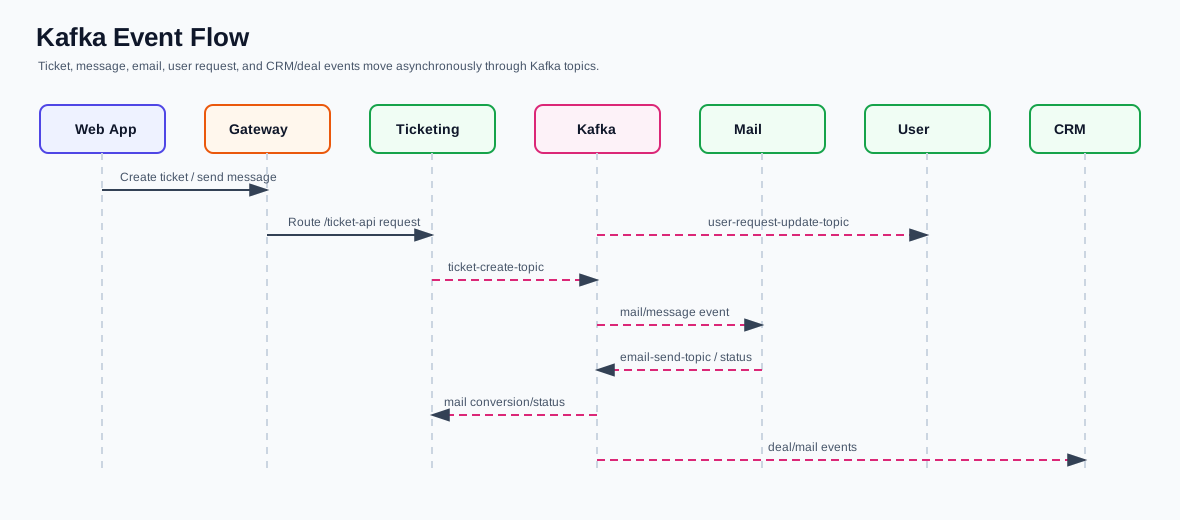
Editable source: KafkaEventFlowDiagram.drawio
1.6.2 Kafka Topics
Topic constants are defined in Utilities/kafka/KafkaTopics.cs.
| Topic |
|---|
mail-config-topic |
ticket-create-topic |
mail-fetch-topic |
mail-ticket-topic |
mail-message-topic |
email-send-topic |
message-create-topic |
custom-email-send-topic |
deal-mail-topic |
update-deal-mail-topic |
get-ticket-status-topic |
create-user-request-topic |
user-request-update-topic |
deal-ticket-topic |
mail-deal-topic |
deal-mail-notification-topic |
1.6.3 Kafka Consumer Groups
Consumer groups are defined in Utilities/kafka/KafkaGroups.cs.
| Group |
|---|
mail-sent-group |
mail-config-group |
mail-fetch-group |
ticket-message-group |
ticket-conversion-group |
email-send-group |
message-create-group |
custom-email-send-group |
deal-mail-group |
update-deal-mail-group |
get-ticket-status-group |
create-user-request-group |
update-user-request-group |
create-mail-deal-group |
deal-mail-notification-group |
1.6.4 Kafka Verification Checklist
Before connecting TeraSupport services to Kafka, verify:
| Check | How to Verify |
|---|---|
| Broker is reachable | Run kafka-topics --bootstrap-server <host>:<port> --list or open Kafdrop. |
| Required topics exist | Confirm the topics listed in section 1.6.2 are present, or confirm auto-topic creation is enabled. |
| Consumer groups appear | Trigger a test ticket/message event and confirm consumer groups appear in Kafdrop or Kafka CLI output. |
| Application configuration is correct | Confirm KAFKA_HOST and KAFKA_PORT are set for User, Ticketing, CRM, and Mail services. |
| Service logs are clean | Check service logs for successful producer/consumer startup and no repeated broker connection errors. |
1.7 Windows Server Deployment With IIS
1.7.0 Windows / IIS Deployment Flow
This diagram shows the Windows deployment sequence and the main IIS routing relationship.
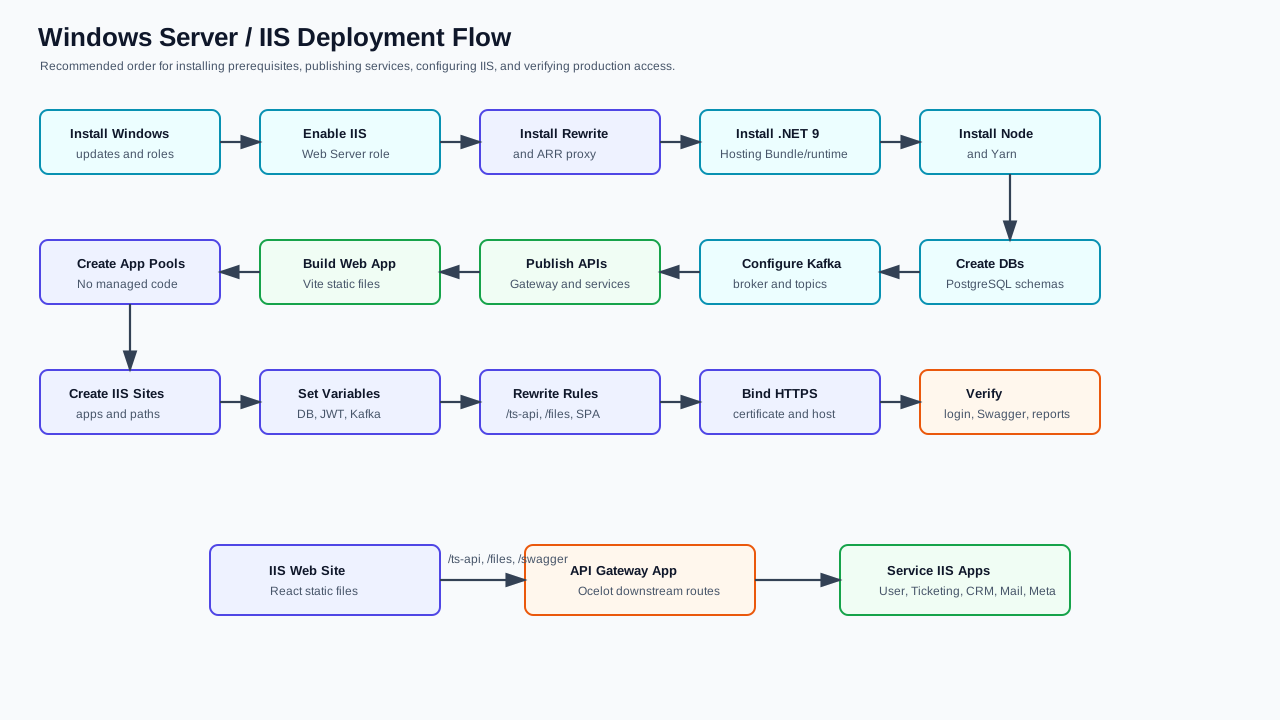
Editable source: IIS Deployment Flow.drawio
1.7.1 Windows Server Preparation
- Sign in to the Windows Server using an administrator account.
- Install all Windows updates.
- Open Server Manager.
- Select Add roles and features.
- Enable Web Server (IIS).
- Enable IIS role services:
- Web Server
- Common HTTP Features
- Static Content
- Default Document
- HTTP Errors
- Health and Diagnostics
- HTTP Logging
- Security
- Request Filtering
- Application Development
- ASP.NET Core Hosting support through Hosting Bundle
- Management Tools
- IIS Management Console
- Install URL Rewrite.
- Install Application Request Routing.
- Open IIS Manager and enable proxy:
- Select server node.
- Open Application Request Routing Cache.
- Click Server Proxy Settings.
- Enable Enable proxy.
- Apply changes.
Verification checkpoint:
| Check | Expected Result |
|---|---|
| IIS Manager opens | Start menu search for IIS Manager opens the management console. |
| URL Rewrite is installed | URL Rewrite appears in the IIS feature list. |
| ARR proxy is enabled | Server node -> Application Request Routing Cache -> Server Proxy Settings has Enable proxy checked. |
| IIS responds locally | Browsing http://localhost shows the IIS default page or configured site. |
1.7.2 Install .NET 9 Hosting Bundle
- Download the .NET 9 Hosting Bundle from Microsoft.
- Run the installer as Administrator.
- Restart IIS:
iisreset
- Confirm runtime installation:
dotnet --list-runtimes
dotnet --list-sdks
Verification checkpoint:
| Check | Command / Expected Result |
|---|---|
| ASP.NET Core runtime installed | dotnet --list-runtimes includes Microsoft.AspNetCore.App 9.0. |
| .NET runtime installed | dotnet --list-runtimes includes Microsoft.NETCore.App 9.0. |
| IIS module registered | Apps published with ASP.NET Core web.config can start behind IIS after iisreset. |
1.7.3 Install Node and Yarn for Web Build
Install Node.js 20 LTS, then install Yarn:
npm install --global yarn
node --version
yarn --version
Build the web application:
cd C:\Source\TeraSupport\Web
yarn install --frozen-lockfile
yarn build
The production web files are generated in:
Web\dist
1.7.4 Prepare PostgreSQL on Windows
Option A: Use a dedicated PostgreSQL server.
Option B: Install PostgreSQL directly on the Windows Server.
Create the required databases:
CREATE DATABASE "TSUserDB";
CREATE DATABASE "TSCallCenterDb";
CREATE DATABASE "TSCRMDb";
CREATE DATABASE "TSDeviceDB";
CREATE DATABASE "TSMailDB";
CREATE DATABASE "TSTicketDb";
Create a production database user:
CREATE USER terasupport_prod WITH PASSWORD '<strong-password>';
GRANT ALL PRIVILEGES ON DATABASE "TSUserDB" TO terasupport_prod;
GRANT ALL PRIVILEGES ON DATABASE "TSCallCenterDb" TO terasupport_prod;
GRANT ALL PRIVILEGES ON DATABASE "TSCRMDb" TO terasupport_prod;
GRANT ALL PRIVILEGES ON DATABASE "TSDeviceDB" TO terasupport_prod;
GRANT ALL PRIVILEGES ON DATABASE "TSMailDB" TO terasupport_prod;
GRANT ALL PRIVILEGES ON DATABASE "TSTicketDb" TO terasupport_prod;
Verification checkpoint:
| Check | Command / Expected Result |
|---|---|
| PostgreSQL service is running | Windows Services shows PostgreSQL running, or pg_isready -h localhost -p 5432 returns accepting connections. |
| Databases exist | pgAdmin or psql -l shows TSUserDB, TSTicketDb, TSCRMDb, TSCallCenterDb, TSDeviceDB, and TSMailDB. |
| Production user has access | psql -h localhost -U terasupport_prod -d TSTicketDb connects successfully. |
1.7.5 Prepare Kafka on Windows
Recommended production option: run Kafka on a Linux/Docker infrastructure and allow Windows-hosted .NET services to connect through KAFKA_HOST and KAFKA_PORT.
If Kafka must run on Windows:
- Install Java Runtime required by the Kafka distribution.
- Download Apache Kafka or Confluent Platform.
- Extract Kafka to:
C:\kafka
- Configure Zookeeper and Kafka listeners.
- Start Zookeeper:
cd C:\kafka
.\bin\windows\zookeeper-server-start.bat .\config\zookeeper.properties
- Start Kafka:
cd C:\kafka
.\bin\windows\kafka-server-start.bat .\config\server.properties
- Create topics manually if auto-create is disabled:
.\bin\windows\kafka-topics.bat --bootstrap-server localhost:9092 --create --topic ticket-create-topic
.\bin\windows\kafka-topics.bat --bootstrap-server localhost:9092 --create --topic mail-ticket-topic
.\bin\windows\kafka-topics.bat --bootstrap-server localhost:9092 --create --topic mail-message-topic
.\bin\windows\kafka-topics.bat --bootstrap-server localhost:9092 --create --topic email-send-topic
.\bin\windows\kafka-topics.bat --bootstrap-server localhost:9092 --create --topic message-create-topic
.\bin\windows\kafka-topics.bat --bootstrap-server localhost:9092 --create --topic create-user-request-topic
.\bin\windows\kafka-topics.bat --bootstrap-server localhost:9092 --create --topic user-request-update-topic
- List topics:
.\bin\windows\kafka-topics.bat --bootstrap-server localhost:9092 --list
Set service variables:
KAFKA_HOST=localhost
KAFKA_PORT=9092
Verification checkpoint:
| Check | Command / Expected Result |
|---|---|
| Kafka process is running | Kafka console stays open without fatal startup errors. |
| Topics can be listed | kafka-topics.bat --bootstrap-server localhost:9092 --list returns topic names. |
| TeraSupport topics exist | Required topics such as ticket-create-topic, mail-ticket-topic, and email-send-topic are listed. |
1.7.6 Publish .NET Services
From the solution root:
cd C:\Source\TeraSupport
dotnet restore TS.sln
dotnet build TS.sln -c Release
Publish each service:
dotnet publish ApiGateway\ApiGateway.csproj -c Release -o C:\inetpub\terasupport\apigateway
dotnet publish User\User.csproj -c Release -o C:\inetpub\terasupport\user
dotnet publish Ticketing\Ticketing.csproj -c Release -o C:\inetpub\terasupport\ticketing
dotnet publish CRM\CRM.csproj -c Release -o C:\inetpub\terasupport\crm
dotnet publish CallCenter\CallCenter.csproj -c Release -o C:\inetpub\terasupport\callcenter
dotnet publish DeviceManagement\DeviceManagement.csproj -c Release -o C:\inetpub\terasupport\devicemanagement
dotnet publish Mail\Mail.csproj -c Release -o C:\inetpub\terasupport\mail
dotnet publish Meta\Meta.csproj -c Release -o C:\inetpub\terasupport\meta
Copy web build output:
New-Item -ItemType Directory -Force C:\inetpub\terasupport\web
Copy-Item C:\Source\TeraSupport\Web\dist\* C:\inetpub\terasupport\web -Recurse -Force
1.7.7 IIS Application Pools
Create one app pool per .NET service and one for the web app.
| App Pool | .NET CLR Version | Pipeline | Identity |
|---|---|---|---|
TeraSupport.ApiGateway | No Managed Code | Integrated | ApplicationPoolIdentity |
TeraSupport.User | No Managed Code | Integrated | ApplicationPoolIdentity |
TeraSupport.Ticketing | No Managed Code | Integrated | ApplicationPoolIdentity |
TeraSupport.CRM | No Managed Code | Integrated | ApplicationPoolIdentity |
TeraSupport.CallCenter | No Managed Code | Integrated | ApplicationPoolIdentity |
TeraSupport.DeviceManagement | No Managed Code | Integrated | ApplicationPoolIdentity |
TeraSupport.Mail | No Managed Code | Integrated | ApplicationPoolIdentity |
TeraSupport.Meta | No Managed Code | Integrated | ApplicationPoolIdentity |
TeraSupport.Web | No Managed Code | Integrated | ApplicationPoolIdentity |
Recommended app pool settings:
| Setting | Value |
|---|---|
| Start Mode | AlwaysRunning |
| Idle Time-out | 0 |
| Rapid-Fail Protection | Enabled |
| Recycling | Schedule during maintenance window |
| Load User Profile | True |
Verification checkpoint:
| Check | Expected Result |
|---|---|
| App pools exist | One app pool exists for each TeraSupport service and web app. |
| Runtime mode is correct | Each pool uses .NET CLR Version: No Managed Code. |
| Startup behavior is correct | Start Mode is AlwaysRunning and Idle Time-out is 0. |
1.7.8 IIS Site and Binding Plan
Recommended Windows deployment pattern:
| IIS Site | Binding | Physical Path |
|---|---|---|
TeraSupport.Web | https://support.example.org | C:\inetpub\terasupport\web |
TeraSupport.ApiGateway | http://localhost:5256 or private port | C:\inetpub\terasupport\apigateway |
TeraSupport.User | http://localhost:5184 or private port | C:\inetpub\terasupport\user |
TeraSupport.Ticketing | http://localhost:5193 or private port | C:\inetpub\terasupport\ticketing |
TeraSupport.CRM | http://localhost:5265 or private port | C:\inetpub\terasupport\crm |
TeraSupport.CallCenter | http://localhost:5042 or private port | C:\inetpub\terasupport\callcenter |
TeraSupport.DeviceManagement | http://localhost:5028 or private port | C:\inetpub\terasupport\devicemanagement |
TeraSupport.Mail | http://localhost:5070 or private port | C:\inetpub\terasupport\mail |
TeraSupport.Meta | http://localhost:5121 or private port | C:\inetpub\terasupport\meta |
Public traffic should enter through the web site and /ts-api should proxy to the API Gateway.
1.7.9 IIS Environment Variables
For each IIS application:
- Open IIS Manager.
- Select the application.
- Open Configuration Editor.
- Select
system.webServer/aspNetCore. - Add environment variables under
environmentVariables. - Apply changes.
- Recycle the app pool.
Example for Ticketing:
<environmentVariables>
  <environmentVariable name="ASPNETCORE_ENVIRONMENT" value="Production" />
  <environmentVariable name="CONNECTIONSTRINGS__DBLOCATION" value="Host=<db-host>;Port=5432;Database=TSTicketDb;Username=<user>;Password=<password>" />
  <environmentVariable name="FILESETTING__FILEBASEURL" value="https://support.example.org/files/" />
  <environmentVariable name="USERSERVICE__BASEURL" value="https://support.example.org/ts-api/" />
  <environmentVariable name="APISETTINGS__BASEURL" value="https://support.example.org/ts-api/" />
  <environmentVariable name="KAFKA_HOST" value="<kafka-host>" />
  <environmentVariable name="KAFKA_PORT" value="9092" />
  <environmentVariable name="JWT__KEY" value="<production-jwt-secret>" />
</environmentVariables>
Verification checkpoint:
| Check | Expected Result |
|---|---|
| API Gateway variables are set | Ocelot downstream hosts/ports point to the correct service bindings. |
| Service database variables are set | Each service points to its own PostgreSQL database. |
| Security variables are set | JWT, SMTP, DB, and integration secrets use production values, not sample values. |
| Changes are active | App pools are recycled after updating variables. |
1.7.10 IIS URL Rewrite Rules
Add a web.config to the web site root:
<?xml version="1.0" encoding="utf-8"?>
<configuration>
  <system.webServer>
    <rewrite>
      <rules>
        <rule name="Proxy API Gateway" stopProcessing="true">
          <match url="^ts-api/(.*)" />
          <action type="Rewrite" url="http://localhost:5256/ts-api/{R:1}" />
        </rule>
        <rule name="Proxy Files" stopProcessing="true">
          <match url="^files/(.*)" />
          <action type="Rewrite" url="http://localhost:5256/files/{R:1}" />
        </rule>
        <rule name="Proxy Swagger" stopProcessing="true">
          <match url="^swagger/(.*)" />
          <action type="Rewrite" url="http://localhost:5256/swagger/{R:1}" />
        </rule>
        <rule name="React SPA Fallback" stopProcessing="true">
          <match url=".*" />
          <conditions logicalGrouping="MatchAll">
            <add input="{REQUEST_FILENAME}" matchType="IsFile" negate="true" />
            <add input="{REQUEST_FILENAME}" matchType="IsDirectory" negate="true" />
          </conditions>
          <action type="Rewrite" url="/index.html" />
        </rule>
      </rules>
    </rewrite>
  </system.webServer>
</configuration>
If API Gateway listens on HTTPS instead of HTTP, update the rewrite target accordingly.
1.7.11 Windows Verification
Verify in this order:
- PostgreSQL is running.
- Kafka and Zookeeper are running.
- User service starts.
- Ticketing service starts.
- Mail service starts and subscribes to Kafka.
- CRM service starts and subscribes to Kafka.
- API Gateway starts and loads Ocelot routes.
- Web app opens from IIS.
/ts-api/swaggeror gateway Swagger opens.- Login works.
- Ticket creation works.
- Ticket assignment triggers Kafka/mail logs.
- Attachment upload/download works.
- Reports open and export.
Verification checkpoint:
| Check | Expected Result |
|---|---|
| Public web site loads | https://<host> opens the TeraSupport login page. |
| API Gateway loads | https://<host>/ts-api/swagger or the configured gateway Swagger URL opens. |
| Authentication works | A valid user can sign in and load the dashboard. |
| Ticket workflow works | A ticket can be created, assigned, updated, and resolved. |
| Logs are clean | IIS logs and Windows Event Viewer do not show repeated startup failures. |
1.8 Linux Deployment With Docker and Portainer
1.8.0 Linux / Docker / Portainer Deployment Flow
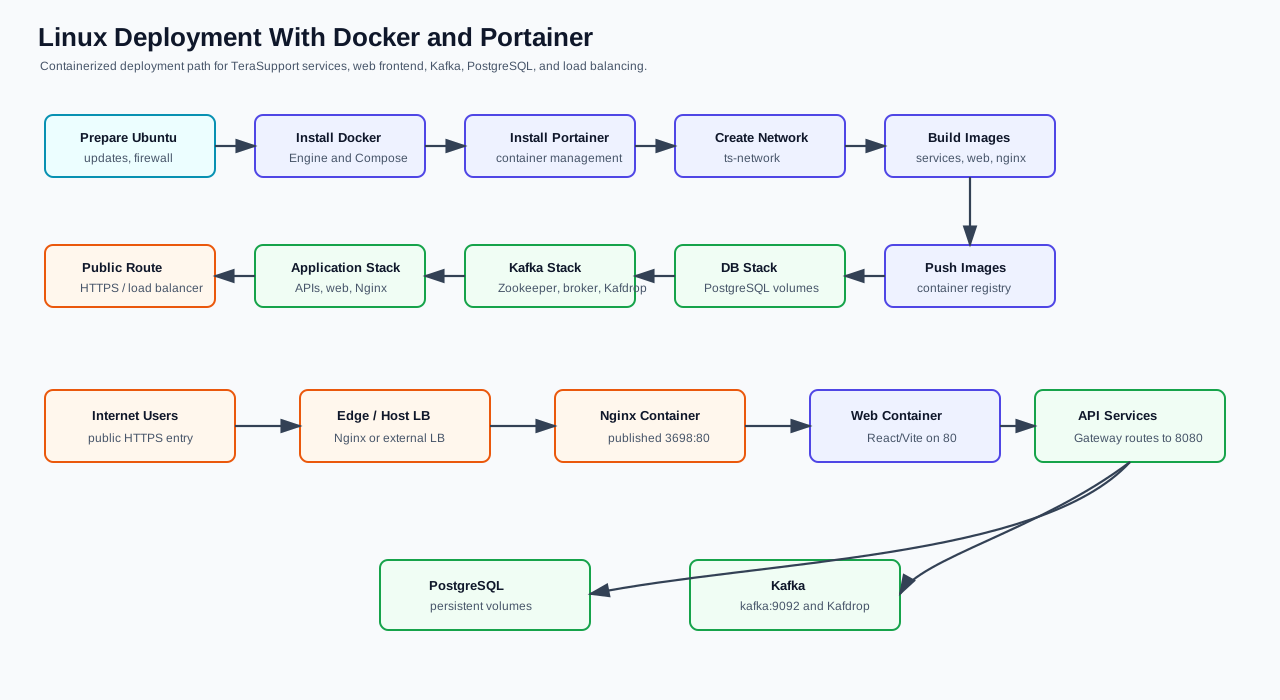
Editable source: LinuxDeploymentFlow.drawio
1.8.0.1 Docker Image Build Map
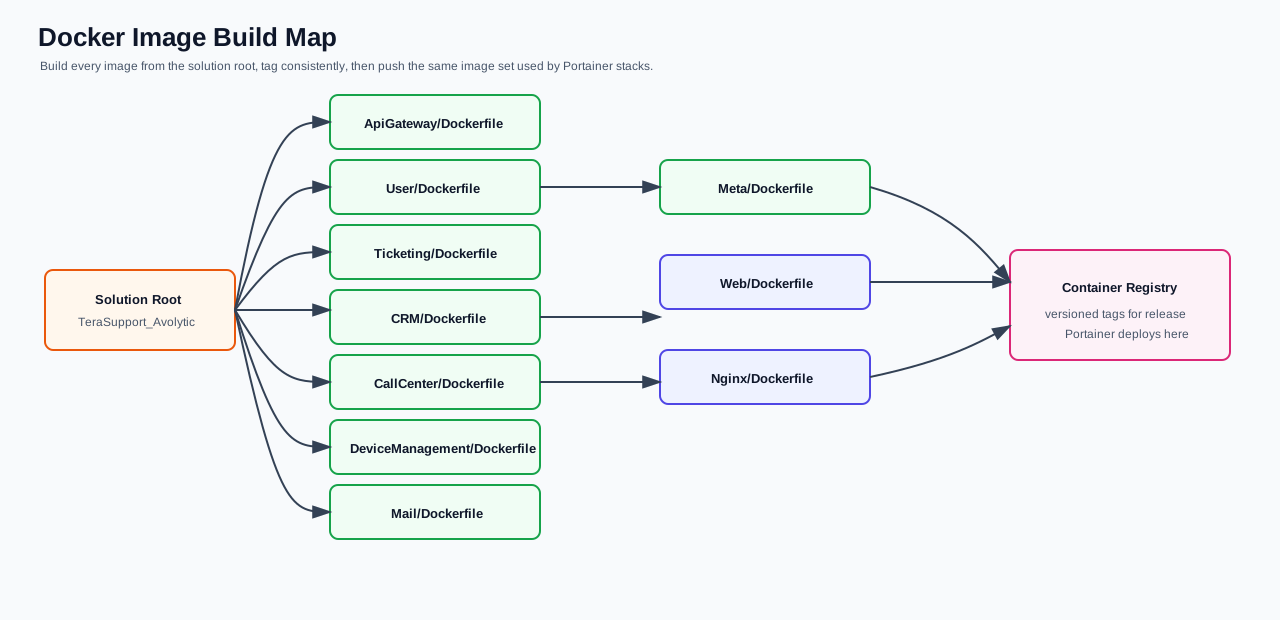
Editable source: Docker Image Build.drawio
1.8.1 Linux Server Preparation
- Install Ubuntu Server.
- Update packages:
sudo apt update
sudo apt upgrade -y
- Install Docker:
sudo apt install -y ca-certificates curl gnupg
sudo install -m 0755 -d /etc/apt/keyrings
curl -fsSL https://download.docker.com/linux/ubuntu/gpg | sudo gpg --dearmor -o /etc/apt/keyrings/docker.gpg
sudo chmod a+r /etc/apt/keyrings/docker.gpg
echo "deb [arch=$(dpkg --print-architecture) signed-by=/etc/apt/keyrings/docker.gpg] https://download.docker.com/linux/ubuntu $(. /etc/os-release && echo "$VERSION_CODENAME") stable" | sudo tee /etc/apt/sources.list.d/docker.list > /dev/null
sudo apt update
sudo apt install -y docker-ce docker-ce-cli containerd.io docker-buildx-plugin docker-compose-plugin
- Enable Docker:
sudo systemctl enable docker
sudo systemctl start docker
docker --version
docker compose version
- Create the Docker network used by the compose files:
docker network create ts-network
Verification checkpoint:
| Check | Command / Expected Result |
|---|---|
| Docker service is running | sudo systemctl status docker shows active/running. |
| Docker works | sudo docker run hello-world completes successfully. |
| Compose plugin works | docker compose version prints a version. |
| Shared network exists | docker network ls includes ts-network. |
1.8.2 Install Portainer
docker volume create portainer_data
docker run -d \
  -p 9443:9443 \
  -p 9000:9000 \
  --name portainer \
  --restart=always \
  -v /var/run/docker.sock:/var/run/docker.sock \
  -v portainer_data:/data \
  portainer/portainer-ce:latest
Open:
https://<server-ip>:9443
Create the initial Portainer admin account and connect to the local Docker environment.
Verification checkpoint:
| Check | Expected Result |
|---|---|
| Portainer opens | https://<server-ip>:9443 loads the Portainer setup page. |
| Admin user exists | The first admin user has been created and password stored securely. |
| Local environment is connected | Portainer can list local Docker containers, images, networks, and volumes. |
1.8.3 Build Docker Images
From the solution root:
cd /opt/TeraSupport
docker build -t arcapps/terasupport-api-gateway:latest -f ApiGateway/Dockerfile .
docker build -t arcapps/terasupport-user-service:latest -f User/Dockerfile .
docker build -t arcapps/terasupport-ticketing-service:latest -f Ticketing/Dockerfile .
docker build -t arcapps/terasupport-crm-service:latest -f CRM/Dockerfile .
docker build -t arcapps/terasupport-callcenter-service:latest -f CallCenter/Dockerfile .
docker build -t arcapps/terasupport-devicemanagement-service:latest -f DeviceManagement/Dockerfile .
docker build -t arcapps/terasupport-mail-service:latest -f Mail/Dockerfile .
docker build -t arcapps/terasupport-meta-service:latest -f Meta/Dockerfile .
docker build -t arcapps/terasupport-web-service:latest -f Web/Dockerfile --build-arg VITE_API_URL=/ts-api .
docker build -t arcapps/terasupport-nginx-service:latest -f Nginx/Dockerfile .
If using a private registry:
docker login <registry-host>
docker tag arcapps/terasupport-api-gateway:latest <registry-host>/terasupport-api-gateway:latest
docker push <registry-host>/terasupport-api-gateway:latest
Repeat tagging and pushing for all images.
Verification checkpoint:
| Check | Command / Expected Result |
|---|---|
| Images exist locally | `docker images |
| Tags match compose files | Image names and tags match prod.compose.yml. |
| Registry push is complete | If using a registry, docker pull <registry-host>/<image>:<tag> succeeds from the deployment server. |
1.8.4 Deploy PostgreSQL Stack in Portainer
Use:
prod.postgres.compose.yml
Steps:
- Open Portainer.
- Go to Stacks.
- Click Add stack.
- Name it
terasupport-db. - Paste the content of
prod.postgres.compose.yml. - Replace all sample passwords with production secrets.
- Deploy the stack.
- Confirm all PostgreSQL containers are healthy.
Current compose creates separate PostgreSQL containers:
| Container | Host Port | Database |
|---|---|---|
postgres_user | 5432 | TSUserDB |
postgres_callcenter | 5433 | TSCallCenterDb |
postgres_crm | 5434 | TSCRMDb |
postgres_device | 5435 | TSDeviceDB |
postgres_mail | 5436 | TSMailDB |
postgres_ticket | 5437 | TSTicketDb |
Public-safe Portainer compose template:
version: "3.8"

services:
  postgres_user:
    image: postgres:17.5
    restart: always
    ports:
      - "5432:5432"
    environment:
      POSTGRES_USER: <POSTGRES_USER>
      POSTGRES_PASSWORD: <POSTGRES_PASSWORD>
      POSTGRES_DB: TSUserDB
    volumes:
      - local_pgdata_user:/var/lib/postgresql/data
    networks:
      - ts-network
    healthcheck:
      test: ["CMD-SHELL", "pg_isready -U <POSTGRES_USER>"]
      interval: 5s
      timeout: 5s
      retries: 5

  postgres_callcenter:
    image: postgres:17.5
    restart: always
    ports:
      - "5433:5432"
    environment:
      POSTGRES_USER: <POSTGRES_USER>
      POSTGRES_PASSWORD: <POSTGRES_PASSWORD>
      POSTGRES_DB: TSCallCenterDb
    volumes:
      - local_pgdata_callcenter:/var/lib/postgresql/data
    networks:
      - ts-network
    healthcheck:
      test: ["CMD-SHELL", "pg_isready -U <POSTGRES_USER>"]
      interval: 5s
      timeout: 5s
      retries: 5

  postgres_crm:
    image: postgres:17.5
    restart: always
    ports:
      - "5434:5432"
    environment:
      POSTGRES_USER: <POSTGRES_USER>
      POSTGRES_PASSWORD: <POSTGRES_PASSWORD>
      POSTGRES_DB: TSCRMDb
    volumes:
      - local_pgdata_crm:/var/lib/postgresql/data
    networks:
      - ts-network
    healthcheck:
      test: ["CMD-SHELL", "pg_isready -U <POSTGRES_USER>"]
      interval: 5s
      timeout: 5s
      retries: 5

  postgres_device:
    image: postgres:17.5
    restart: always
    ports:
      - "5435:5432"
    environment:
      POSTGRES_USER: <POSTGRES_USER>
      POSTGRES_PASSWORD: <POSTGRES_PASSWORD>
      POSTGRES_DB: TSDeviceDB
    volumes:
      - local_pgdata_device:/var/lib/postgresql/data
    networks:
      - ts-network
    healthcheck:
      test: ["CMD-SHELL", "pg_isready -U <POSTGRES_USER>"]
      interval: 5s
      timeout: 5s
      retries: 5

  postgres_mail:
    image: postgres:17.5
    restart: always
    ports:
      - "5436:5432"
    environment:
      POSTGRES_USER: <POSTGRES_USER>
      POSTGRES_PASSWORD: <POSTGRES_PASSWORD>
      POSTGRES_DB: TSMailDB
    volumes:
      - local_pgdata_mail:/var/lib/postgresql/data
    networks:
      - ts-network
    healthcheck:
      test: ["CMD-SHELL", "pg_isready -U <POSTGRES_USER>"]
      interval: 5s
      timeout: 5s
      retries: 5

  postgres_ticket:
    image: postgres:17.5
    restart: always
    ports:
      - "5437:5432"
    environment:
      POSTGRES_USER: <POSTGRES_USER>
      POSTGRES_PASSWORD: <POSTGRES_PASSWORD>
      POSTGRES_DB: TSTicketDb
    volumes:
      - local_pgdata_ticket:/var/lib/postgresql/data
    networks:
      - ts-network
    healthcheck:
      test: ["CMD-SHELL", "pg_isready -U <POSTGRES_USER>"]
      interval: 5s
      timeout: 5s
      retries: 5

volumes:
  local_pgdata_user:
  local_pgdata_callcenter:
  local_pgdata_crm:
  local_pgdata_device:
  local_pgdata_mail:
  local_pgdata_ticket:

networks:
  ts-network:
    external: true
Do not paste real database passwords into the public manual. Replace <POSTGRES_USER> and <POSTGRES_PASSWORD> only inside Portainer or a client-controlled secret vault.
If the production Docker network is named tera_networks instead of ts-network, replace the network name consistently in all three Portainer stacks. Do not mix both names.
Verification checkpoint:
| Check | Expected Result |
|---|---|
| Stack is running | Portainer shows the terasupport-db stack as deployed/running. |
| PostgreSQL containers are healthy | User, Ticket, CRM, CallCenter, Device, and Mail database containers are running. |
| Volumes are persistent | Each database container has a named volume mapped for data persistence. |
1.8.5 Deploy Kafka Stack in Portainer
Use:
prod.kafka.compose.yml
Steps:
- Open Stacks in Portainer.
- Click Add stack.
- Name it
terasupport-kafka. - Paste the Kafka compose content.
- Confirm
ts-networkalready exists. - Deploy the stack.
- Open Kafdrop on:
http://<server-ip>:9001
- Confirm Kafka broker is visible.
- Confirm topics are created after services publish events.
For Docker services, set:
KAFKA_HOST=kafka
KAFKA_PORT=9092
For host-based tools connecting from the Linux server, use:
KAFKA_HOST=localhost
KAFKA_PORT=29092
Public-safe Portainer compose template:
version: "3.8"

networks:
  ts-network:
    external: true

volumes:
  zookeeper_data:
  zookeeper_log:
  kafka_data:

services:
  zookeeper:
    image: confluentinc/cp-zookeeper:7.4.0
    container_name: zookeeper
    networks:
      - ts-network
    ports:
      - "2181:2181"
    volumes:
      - zookeeper_data:/var/lib/zookeeper/data
      - zookeeper_log:/var/lib/zookeeper/log
    environment:
      ZOOKEEPER_CLIENT_PORT: 2181
      ZOOKEEPER_TICK_TIME: 2000
      ZOOKEEPER_DATA_DIR: /var/lib/zookeeper/data
      ZOOKEEPER_DATA_LOG_DIR: /var/lib/zookeeper/log

  kafka:
    image: confluentinc/cp-kafka:7.4.0
    container_name: kafka
    hostname: kafka
    networks:
      - ts-network
    depends_on:
      - zookeeper
    ports:
      - "9092:9092"
      - "29092:29092"
    volumes:
      - kafka_data:/var/lib/kafka/data
    environment:
      KAFKA_BROKER_ID: 1
      KAFKA_ZOOKEEPER_CONNECT: zookeeper:2181
      KAFKA_LISTENERS: PLAINTEXT://0.0.0.0:9092,PLAINTEXT_HOST://0.0.0.0:29092
      KAFKA_ADVERTISED_LISTENERS: PLAINTEXT://kafka:9092,PLAINTEXT_HOST://<SERVER_IP_OR_DNS>:29092
      KAFKA_LISTENER_SECURITY_PROTOCOL_MAP: PLAINTEXT:PLAINTEXT,PLAINTEXT_HOST:PLAINTEXT
      KAFKA_INTER_BROKER_LISTENER_NAME: PLAINTEXT
      KAFKA_OFFSETS_TOPIC_REPLICATION_FACTOR: 1
      KAFKA_TRANSACTION_STATE_LOG_REPLICATION_FACTOR: 1
      KAFKA_TRANSACTION_STATE_LOG_MIN_ISR: 1
      KAFKA_AUTO_CREATE_TOPICS_ENABLE: "true"
      KAFKA_LOG_DIRS: /var/lib/kafka/data

  kafka-ui:
    image: provectuslabs/kafka-ui:latest
    container_name: kafka-ui
    networks:
      - ts-network
    depends_on:
      - kafka
    ports:
      - "9001:8080"
    environment:
      KAFKA_CLUSTERS_0_NAME: terasupport
      KAFKA_CLUSTERS_0_BOOTSTRAPSERVERS: kafka:9092
      KAFKA_CLUSTERS_0_ZOOKEEPER: zookeeper:2181
Replace <SERVER_IP_OR_DNS> with the Linux server IP or internal DNS name used by host-based tools. Do not publish private IP addresses in public documentation.
1.8.6 Deploy Application Stack in Portainer
Use:
prod.compose.yml
Steps:
- Open Stacks.
- Click Add stack.
- Name it
terasupport-app. - Paste the content of
prod.compose.yml. - Replace sample secrets:
- Database passwords
JWT__KEY- Remote device token
- Mail credentials
- Meta/Facebook/Instagram credentials
- Cloudflare tunnel token, if used
- Confirm all image names point to your registry.
- Deploy the stack.
- Open Containers and confirm all app containers are running.
Main services in production compose:
| Service | Image |
|---|---|
apigateway | arcapps/terasupport-api-gateway:latest |
user | arcapps/terasupport-user-service:latest |
ticketing | arcapps/terasupport-ticketing-service:latest |
crm | arcapps/terasupport-crm-service:latest |
callcenter | arcapps/terasupport-callcenter-service:latest |
devicemanagement | arcapps/terasupport-devicemanagement-service:latest |
mail | arcapps/terasupport-mail-service:latest |
web | arcapps/terasupport-web-service:latest |
nginx | arcapps/terasupport-nginx-service:latest |
Public-safe Portainer compose template:
version: "3.8"

services:
  apigateway:
    image: <REGISTRY>/terasupport-api-gateway:<TAG>
    networks:
      - ts-network
    environment:
      - ASPNETCORE_ENVIRONMENT=Production
      - ALLOWEDHOSTS=<ALLOWED_HOSTS>
      - JWT__KEY=<JWT_SIGNING_KEY>
      - OCELOTVARIABLES__DOWNSTREAMSCHEME=http
      - OCELOTVARIABLES__USERMANAGEMENTSERVICEHOST=user
      - OCELOTVARIABLES__USERMANAGEMENTSERVICEPORT=8080
      - OCELOTVARIABLES__TICKETINGSYSTEMSERVICEHOST=ticketing
      - OCELOTVARIABLES__TICKETINGSYSTEMSERVICEPORT=8080
      - OCELOTVARIABLES__CRMSERVICEHOST=crm
      - OCELOTVARIABLES__CRMSERVICEPORT=8080
      - OCELOTVARIABLES__CALLCENTERHOST=callcenter
      - OCELOTVARIABLES__CALLCENTERPORT=8080
      - OCELOTVARIABLES__DEVICEHOST=devicemanagement
      - OCELOTVARIABLES__DEVICEPORT=8080
      - OCELOTVARIABLES__MAILSERVICEHOST=mail
      - OCELOTVARIABLES__MAILSERVICEPORT=8080

  user:
    image: <REGISTRY>/terasupport-user-service:<TAG>
    networks:
      - ts-network
    volumes:
      - user-data:/app/wwwroot
    environment:
      - ASPNETCORE_ENVIRONMENT=Production
      - ALLOWEDHOSTS=<ALLOWED_HOSTS>
      - CONNECTIONSTRINGS__DBLOCATION=Host=postgres_user;Port=5432;Database=TSUserDB;Username=<POSTGRES_USER>;Password=<POSTGRES_PASSWORD>

  ticketing:
    image: <REGISTRY>/terasupport-ticketing-service:<TAG>
    networks:
      - ts-network
    volumes:
      - ticketing-data:/app/wwwroot
    environment:
      - ASPNETCORE_ENVIRONMENT=Production
      - ALLOWEDHOSTS=<ALLOWED_HOSTS>
      - CONNECTIONSTRINGS__DBLOCATION=Host=postgres_ticket;Port=5432;Database=TSTicketDb;Username=<POSTGRES_USER>;Password=<POSTGRES_PASSWORD>
      - FILESETTING__FILEBASEURL=<PUBLIC_FILE_BASE_URL>
      - USERSERVICE__BASEURL=http://user:8080/
      - APISETTINGS__BASEURL=http://user:8080/
      - JWT__KEY=<JWT_SIGNING_KEY>
      - KAFKA_HOST=kafka
      - KAFKA_PORT=9092

  crm:
    image: <REGISTRY>/terasupport-crm-service:<TAG>
    networks:
      - ts-network
    volumes:
      - crm-data:/app/wwwroot
    environment:
      - ASPNETCORE_ENVIRONMENT=Production
      - ALLOWEDHOSTS=<ALLOWED_HOSTS>
      - CONNECTIONSTRINGS__DBLOCATION=Host=postgres_crm;Port=5432;Database=TSCRMDb;Username=<POSTGRES_USER>;Password=<POSTGRES_PASSWORD>
      - BASEAPISETTINGS__USERSERVICE=http://user:8080/user-api/
      - FILESETTING__FILEBASEURL=<PUBLIC_FILE_BASE_URL>
      - KAFKA_HOST=kafka
      - KAFKA_PORT=9092

  callcenter:
    image: <REGISTRY>/terasupport-callcenter-service:<TAG>
    networks:
      - ts-network
    environment:
      - ASPNETCORE_ENVIRONMENT=Production
      - ALLOWEDHOSTS=<ALLOWED_HOSTS>
      - CONNECTIONSTRINGS__DBLOCATION=Host=postgres_callcenter;Port=5432;Database=TSCallCenterDb;Username=<POSTGRES_USER>;Password=<POSTGRES_PASSWORD>
      - APISETTINGS__BASEURL=http://user:8080/

  devicemanagement:
    image: <REGISTRY>/terasupport-devicemanagement-service:<TAG>
    networks:
      - ts-network
    environment:
      - ASPNETCORE_ENVIRONMENT=Production
      - ALLOWEDHOSTS=<ALLOWED_HOSTS>
      - CONNECTIONSTRINGS__DBLOCATION=Host=postgres_device;Port=5432;Database=TSDeviceDB;Username=<POSTGRES_USER>;Password=<POSTGRES_PASSWORD>
      - APISETTINGS__BASEURL=http://user:8080/
      - APISETTINGS__TICKETAPIURL=http://ticketing:8080/

  mail:
    image: <REGISTRY>/terasupport-mail-service:<TAG>
    networks:
      - ts-network
    volumes:
      - mail-data:/app/wwwroot
    environment:
      - ASPNETCORE_ENVIRONMENT=Production
      - ALLOWEDHOSTS=<ALLOWED_HOSTS>
      - DB_HOST=postgres_mail
      - DB_PORT=5432
      - DB_NAME=TSMailDB
      - DB_USER=<POSTGRES_USER>
      - DB_PASSWORD=<POSTGRES_PASSWORD>
      - KAFKA_HOST=kafka
      - KAFKA_PORT=9092
      - TicketHTTP_HOST=<PUBLIC_TICKET_VIEW_URL>

  web:
    image: <REGISTRY>/terasupport-web-service:<TAG>
    networks:
      - ts-network
    environment:
      - VITE_API_URL=/ts-api

  nginx:
    image: <REGISTRY>/terasupport-nginx-service:<TAG>
    networks:
      - ts-network
    ports:
      - "<PUBLIC_HTTP_PORT>:80"
    depends_on:
      - apigateway
      - web
      - callcenter
      - crm
      - devicemanagement
      - mail
      - ticketing
      - user

networks:
  ts-network:
    external: true

volumes:
  user-data:
  mail-data:
  crm-data:
  ticketing-data:
The public template intentionally removes optional parts. Do not include these in the public compose example unless the client explicitly enables them and provides values through a private channel:
| Optional Part | Public Manual Guidance |
|---|---|
| Cloudflare Tunnel | Remove from the public template. Add only in private deployment notes with <CLOUDFLARE_TUNNEL_TOKEN>. |
| Meta/Facebook/Instagram service | Remove unless the integration is part of the production scope. Use placeholders only. |
| Remote device integration token | Remove unless the module is enabled. Use <REMOTE_DEVICE_AUTH_TOKEN> only in private deployment values. |
| Ollama or AI endpoint | Remove unless the AI service is deployed and approved for production. |
| Real public domain, IP, JWT key, DB password, SMTP credential | Never publish. Use placeholders in documentation and store real values in the client vault. |
If Meta service is required in production, add it privately with placeholders only:
meta:
  image: <REGISTRY>/terasupport-meta-service:<TAG>
  networks:
    - ts-network
  environment:
    - ASPNETCORE_ENVIRONMENT=Production
    - CONNECTIONSTRINGS__DBLOCATION=Host=<META_DB_HOST>;Port=5432;Database=TSMetaDb;Username=<POSTGRES_USER>;Password=<POSTGRES_PASSWORD>
    - BASEAPISETTINGS__USERSERVICE=http://user:8080/user-api/
Verification checkpoint:
| Check | Expected Result |
|---|---|
| Application stack is running | Portainer shows the application stack as deployed/running. |
| Containers are stable | API Gateway, services, web, and Nginx containers do not restart repeatedly. |
| Service logs are clean | docker logs <container> does not show repeated database, Kafka, JWT, or routing errors. |
| Environment values are production-ready | Sample secrets and placeholder URLs are replaced before go-live. |
1.8.7 Nginx Load Balancer Configuration
The repository includes:
Nginx/default.conf
Current routing pattern:
| Path | Upstream |
|---|---|
/ | web:80 |
/ts-api/ | apigateway:8080 |
/files/ | apigateway:8080 |
/swagger/ | apigateway:8080 |
/ollama-api/ | External Ollama host |
Production Nginx should include proxy headers:
location /ts-api/ {
    proxy_pass http://apigateway;
    proxy_http_version 1.1;
    proxy_set_header Host $host;
    proxy_set_header X-Real-IP $remote_addr;
    proxy_set_header X-Forwarded-For $proxy_add_x_forwarded_for;
    proxy_set_header X-Forwarded-Proto $scheme;
    proxy_read_timeout 300s;
}
If multiple API Gateway replicas are used, update the upstream:
upstream apigateway {
    least_conn;
    server apigateway-1:8080;
    server apigateway-2:8080;
}
With Docker Compose scaling, run:
docker compose -f prod.compose.yml up -d --scale apigateway=2
Only scale stateless services. Do not scale PostgreSQL, Kafka, or stateful services without a proper clustering design.
1.8.8 Public HTTPS / Load Balancer Options
Choose one production entry option:
| Option | Description |
|---|---|
| Host Nginx | Install Nginx on Linux host and proxy to container port 3698. |
| Container Nginx | Use included nginx container and publish 80/443. |
| Cloudflare Tunnel | Optional. Remove from the public compose template. Add only in private deployment notes using <CLOUDFLARE_TUNNEL_TOKEN>. |
| External Load Balancer | Point external LB to Linux host and published Nginx port. |
For host Nginx:
server {
    listen 80;
    server_name support.example.org;
    return 301 https://$host$request_uri;
}

server {
    listen 443 ssl http2;
    server_name support.example.org;

    ssl_certificate /etc/letsencrypt/live/support.example.org/fullchain.pem;
    ssl_certificate_key /etc/letsencrypt/live/support.example.org/privkey.pem;

    client_max_body_size 30M;

    location / {
        proxy_pass http://127.0.0.1:3698;
        proxy_set_header Host $host;
        proxy_set_header X-Real-IP $remote_addr;
        proxy_set_header X-Forwarded-For $proxy_add_x_forwarded_for;
        proxy_set_header X-Forwarded-Proto $scheme;
    }
}
Verification checkpoint:
| Check | Expected Result |
|---|---|
| Nginx config is valid | nginx -t succeeds if using host Nginx; container logs are clean if using container Nginx. |
| Public URL loads | https://<domain> opens the web login page. |
| API routes work | https://<domain>/ts-api/swagger reaches API Gateway. |
| TLS is correct | Browser certificate matches the public domain and is not expired. |
1.8.9 Linux Verification
Run:
docker ps
docker logs kafka --tail=100
docker logs apigateway --tail=100
docker logs ticketing --tail=100
docker logs mail --tail=100
curl -I http://localhost:3698
curl -I http://localhost:3698/swagger/
Verify in browser:
| URL | Expected Result |
|---|---|
http://<server-ip>:3698 | Web app loads. |
http://<server-ip>:3698/swagger/ | Gateway Swagger loads. |
http://<server-ip>:9001 | Kafdrop loads. |
https://support.example.org | Production HTTPS site loads. |
Functional verification:
- Login as administrator.
- Open Admin Panel.
- Create or verify organization.
- Create user.
- Create region and facility.
- Create category and team.
- Create ticket from portal.
- Assign ticket.
- Send reply.
- Confirm Kafka topics receive events.
- Confirm email notification is sent.
- Confirm reports load.
1.9 CQRS / MediatR Service Configuration Notes
The backend services use CQRS-style modules and MediatR handlers. Deployment must preserve:
| Requirement | Why It Matters |
|---|---|
| Service-specific database connection | Each service owns its data context. |
Correct CONNECTIONSTRINGS__DBLOCATION | EF Core UseNpgsql reads this value. |
| Correct Kafka host/port | Producers and consumers read KAFKA_HOST and KAFKA_PORT. |
| Correct downstream service URLs | Handlers call other services for user, ticket, CRM, device, and mail workflows. |
| JWT key consistency | Gateway and protected services must validate the same token signing key. |
| File base URL consistency | Ticket/CRM/Mail attachments must resolve through the correct public URL. |
Because handlers are invoked by MediatR at runtime, a service may start successfully but fail business workflows if one of these values points to the wrong service or environment.
1.10 Backup and Restore
1.10.1 PostgreSQL Backup
Run daily backups for all service databases:
pg_dump -h <db-host> -U <db-user> -d TSUserDB > TSUserDB.sql
pg_dump -h <db-host> -U <db-user> -d TSTicketDb > TSTicketDb.sql
pg_dump -h <db-host> -U <db-user> -d TSCRMDb > TSCRMDb.sql
pg_dump -h <db-host> -U <db-user> -d TSCallCenterDb > TSCallCenterDb.sql
pg_dump -h <db-host> -U <db-user> -d TSDeviceDB > TSDeviceDB.sql
pg_dump -h <db-host> -U <db-user> -d TSMailDB > TSMailDB.sql
1.10.2 Docker Volume Backup
Back up volumes used by:
- PostgreSQL
ticketing-datacrm-datamail-datauser-dataollama_data, if Ollama is used locally
1.11 Final Go-Live Checklist
| Area | Check |
|---|---|
| Windows Server | IIS role, Hosting Bundle, URL Rewrite, ARR, app pools, bindings configured. |
| Linux Server | Docker, Portainer, network, stacks, Nginx/load balancer configured. |
| Database | All service databases created and backed up. |
| Kafka | Broker running, topics created or auto-created, Kafdrop verified. |
| API Gateway | Ocelot routes point to correct downstream services. |
| Services | All .NET services start and expose Swagger/OpenAPI where enabled. |
| Web | Vite build uses correct VITE_API_URL. |
| Security | HTTPS enabled; secrets replaced; sample credentials removed. |
| File Uploads | client_max_body_size and attachment storage verified. |
| Reports | Ticketing report endpoints and UI reports verified. |
| Notifications | Mail service, Kafka events, and SMTP delivery verified. |
| Documentation | Download links, environment values, and verification results are recorded. |
1.12 Installer and Reference Link Index
Use these links during deployment. Prefer official vendor pages so installers receive current security updates.
| Area | Link | Purpose |
|---|---|---|
| .NET 9 | .NET 9 downloads | Download SDK and ASP.NET Core Hosting Bundle. |
| ASP.NET Core on IIS | Microsoft IIS hosting guide | Confirm IIS role services and Hosting Bundle behavior. |
| IIS URL Rewrite | IIS URL Rewrite | Install rewrite rules support for proxy and SPA fallback. |
| IIS ARR | Application Request Routing | Enable IIS reverse proxy support. |
| Node.js | Node.js downloads | Install Node LTS for building the React/Vite web app. |
| Yarn | Yarn installation | Install Yarn for web dependencies. |
| PostgreSQL Windows | PostgreSQL Windows installer | Install PostgreSQL server and optional pgAdmin. |
| pgAdmin | pgAdmin Windows download | Manage PostgreSQL databases visually. |
| Kafka | Apache Kafka Quickstart | Download Kafka and review broker/topic commands. |
| Docker Engine | Docker Engine on Ubuntu | Install Docker Engine and Compose plugin. |
| Portainer CE | Portainer CE install | Install Portainer for stack deployment. |
| Nginx | Nginx load balancing | Configure upstreams and reverse proxy routing. |
For diagrams that should remain editable, keep the .drawio source files under docs/images/installation/diagrams/ and publish an exported SVG beside each source file for the documentation page.
1.13 Final Operator Notes
Before handover, record the following operational values in the client-controlled password vault or deployment register. Do not store secrets directly in this documentation.
| Item | What to Record |
|---|---|
| Public URL | Production domain, DNS owner, TLS certificate owner, expiry date. |
| Windows/IIS path | IIS site names, app pool names, physical paths, private service ports. |
| Linux/Portainer path | Server IP, Portainer URL, stack names, registry host, image tags. |
| Database access | Hostnames, database names, admin owner, backup schedule, restore contact. |
| Kafka access | Broker host/port, Kafdrop URL if enabled, topic management owner. |
| Secrets | JWT key, DB passwords, SMTP secrets, integration tokens, certificate private key location. |
| Verification result | Date/time of successful login, ticket creation, assignment, attachment upload, mail event, and report export. |